
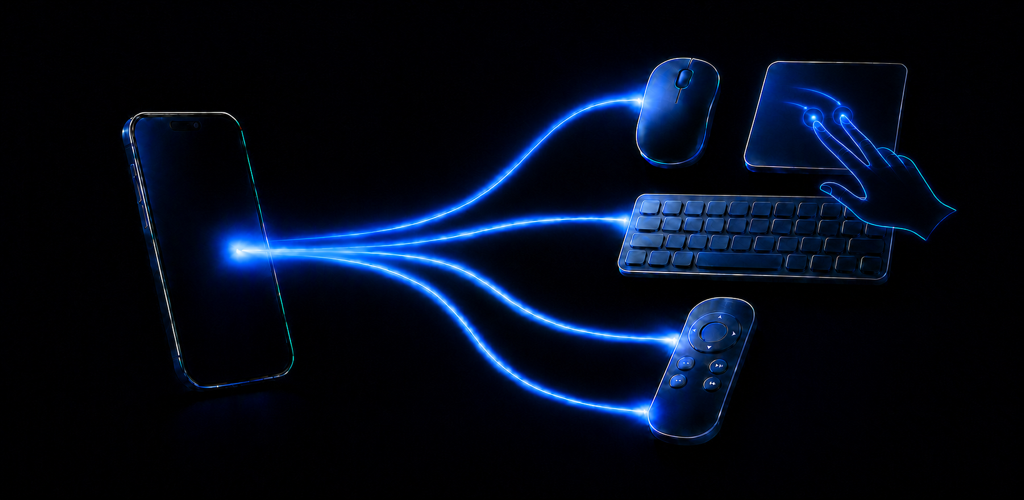
An Android phone can work as more than a second screen. On supported devices, it can present itself to another computer, tablet, television, or media device as a Bluetooth input device. That makes the phone useful as a wireless mouse, trackpad, keyboard, or remote when dedicated controls are unavailable or inconvenient.
Omny Pad packages those controls into one Android app. It is designed for short, practical jobs: moving a pointer across the room, entering text on a television, controlling a presentation, or finishing a task after a mouse battery dies.
What Bluetooth HID means
HID stands for Human Interface Device. It is the device class used by familiar peripherals such as keyboards, mice, and game controllers. Android exposes a public Bluetooth HID Device API that lets a compatible phone register as an input device and send reports to a paired host. The API was added in Android 9, or API level 28, according to the Android BluetoothHidDevice reference.
The important practical difference is where the work happens. With a network remote, you may need software on both devices or a shared local network. With Bluetooth HID, the host sees the phone as a standard input device. A compatible host therefore does not need a separate Omny Pad companion app.
What you need before pairing
- A compatible Android phone or tablet: Omny Pad supports Android 9 or later. Bluetooth behavior can still vary by manufacturer and device model.
- A Bluetooth host: The computer, tablet, television, or media device must accept the relevant Bluetooth keyboard or mouse profile.
- Nearby devices permission: Recent Android versions require permission before an app can connect to nearby Bluetooth devices.
- A clear first pairing: Begin from the host's Bluetooth settings and confirm the same pairing request on both screens.
Compatibility matters because Bluetooth support is not identical across every operating system, television, or embedded device. Pointer controls may work while a particular media key does not, and an app can choose how it responds to keyboard commands.
Pair the phone as an input device
- Open Omny Pad and tap the connection control.
- Allow Bluetooth or Nearby devices access if Android requests it.
- Open Bluetooth settings on the device you want to control.
- Select the Android phone when it appears as an available input device.
- Confirm the pairing request on both devices.
- Return to Omny Pad and choose Trackpad, Keyboard, or Remote.
If the phone does not appear, keep the Omny Pad connection screen open and restart discovery on the host. If a previous pairing is stuck, remove the saved device on the host, disconnect in Omny Pad, and pair again from the beginning. The full Omny Pad pairing guide includes host-specific instructions and troubleshooting.
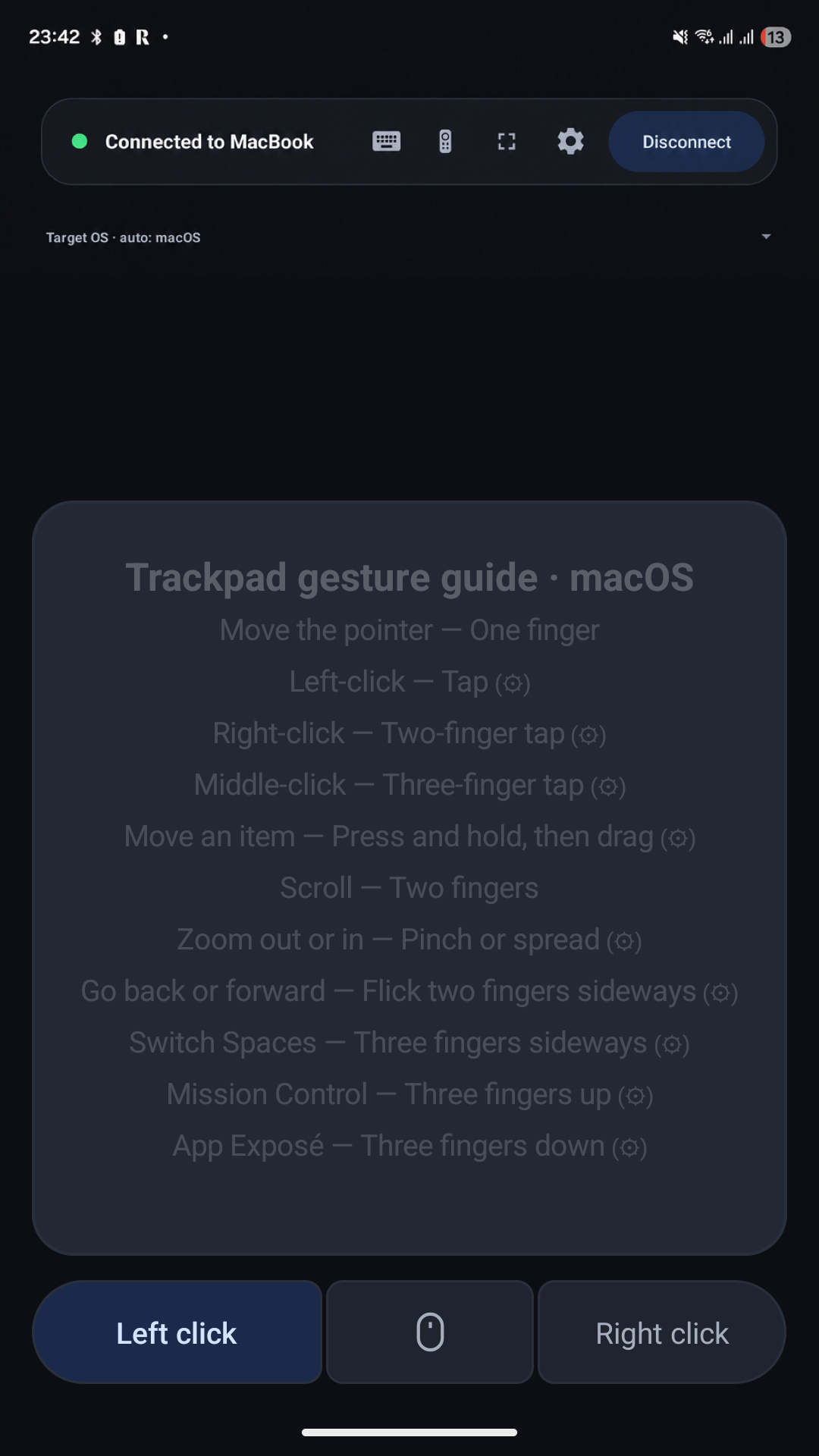
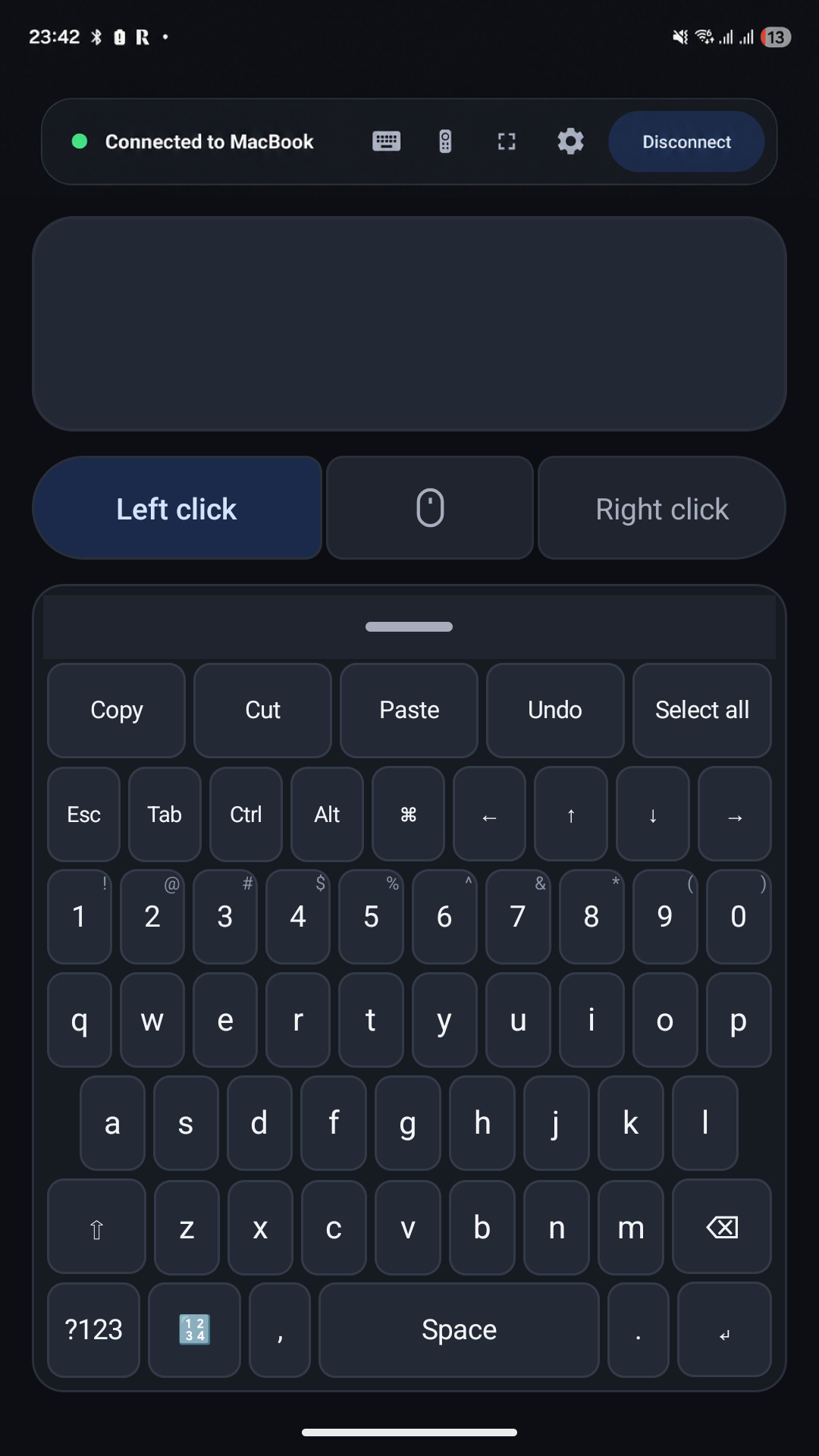
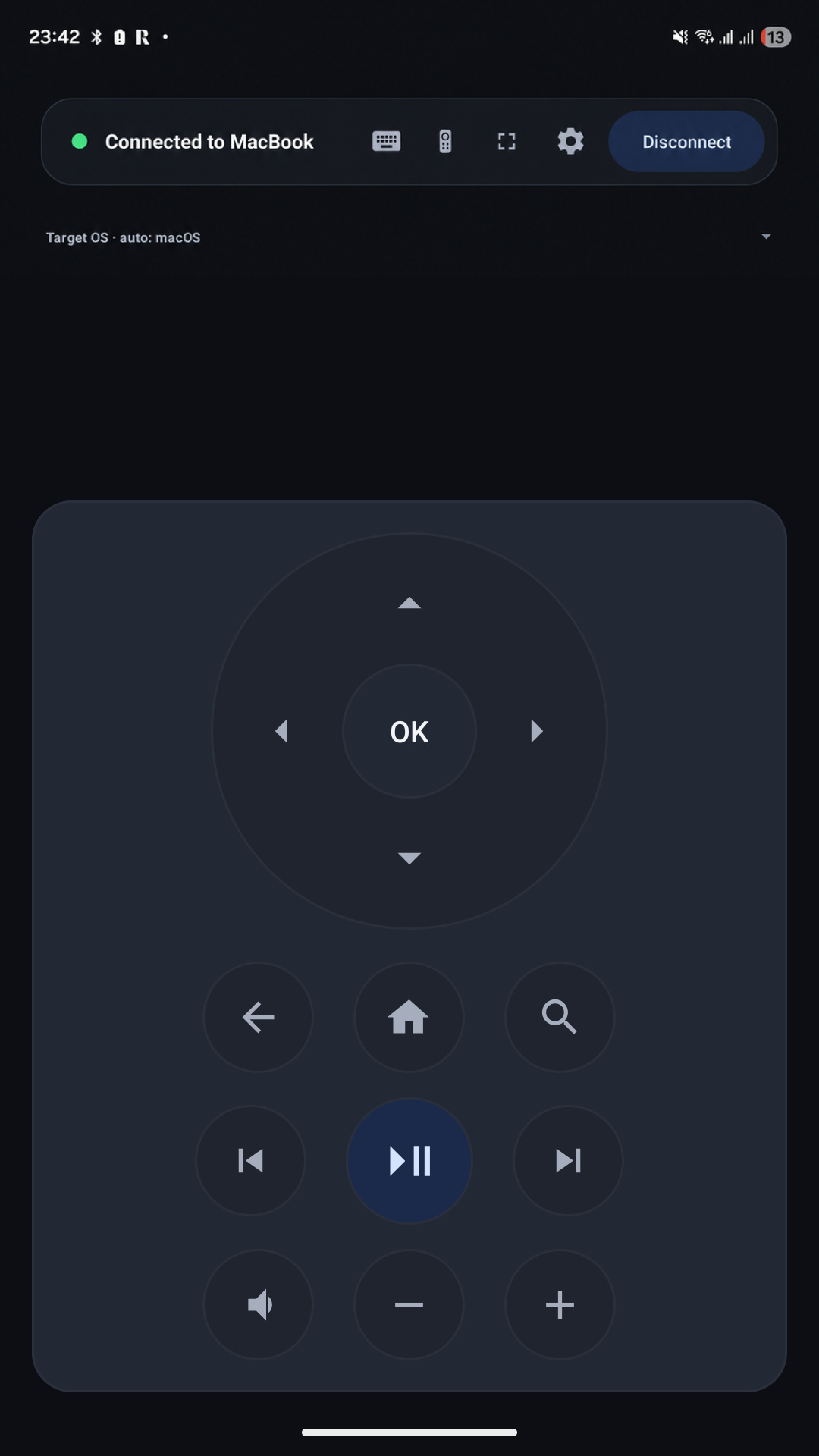
Choose the right control surface
Trackpad for pointer movement
Trackpad mode is the closest replacement for a laptop touchpad. Use it to move the pointer, click, drag, and scroll. It is useful for a media computer connected to a television, a compact travel setup, or a temporary workspace without a mouse.
Keyboard for text and shortcuts
Keyboard mode is faster than selecting letters with a directional remote. It is especially useful for search boxes, URLs, short messages, arrow-key navigation, and supported shortcuts. The receiving app decides which shortcuts and special keys it accepts.
Remote for media and navigation
Remote mode groups directional, playback, track, and volume controls. Support depends on the host and the active app, so treat it as a focused convenience layer rather than a promise that every key works everywhere.
When a phone works well—and when dedicated hardware wins
A phone is an excellent backup controller because it is usually charged, familiar, and already within reach. It is also useful when adding a full-size keyboard and mouse would make a setup unnecessarily complicated.
Dedicated hardware remains better for long typing sessions, precision work, competitive games, and accessibility needs that depend on tactile feedback. The practical goal is not to replace every input device. It is to make common controls available at the moment they are needed.
Put a spare input device in your pocket.
Download Omny Pad to turn a compatible Android phone or tablet into a wireless trackpad, keyboard, and remote.
 Google Play