
A presentation is ready, but the clicker is not. A media PC is connected to the biggest screen in the room, while its keyboard is somewhere else. A mouse runs out of power halfway through a trip. None of these is a major failure. Each is simply a small interruption that breaks the flow.
Omny Pad turns the Android phone or tablet already within reach into a wireless mouse, multitouch trackpad, keyboard, and remote. It sends input over standard Bluetooth HID, so a compatible host does not need a separate companion app.
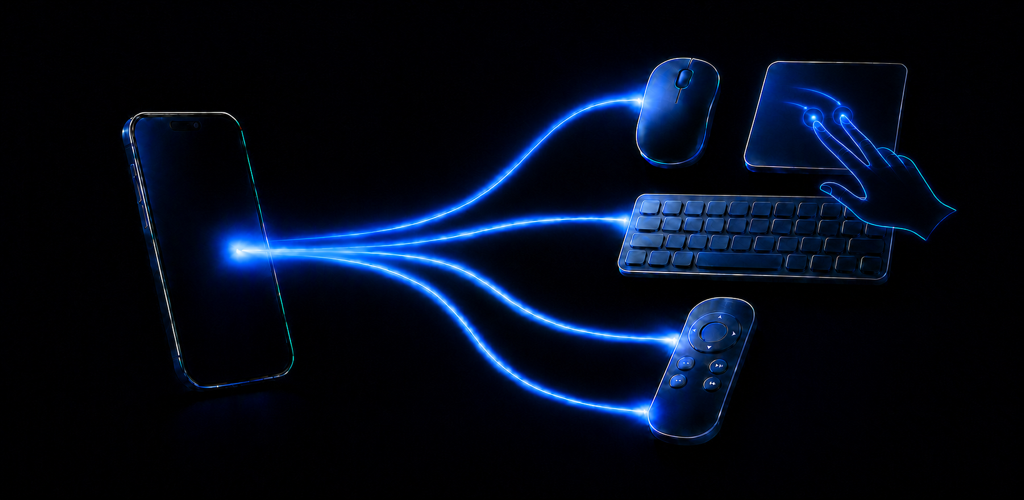
One app, four ways to take control
Omny Pad is built around a simple idea: the right control should be available without finding another piece of hardware. Instead of stretching one crowded screen across every job, the app gives each input mode a focused surface.
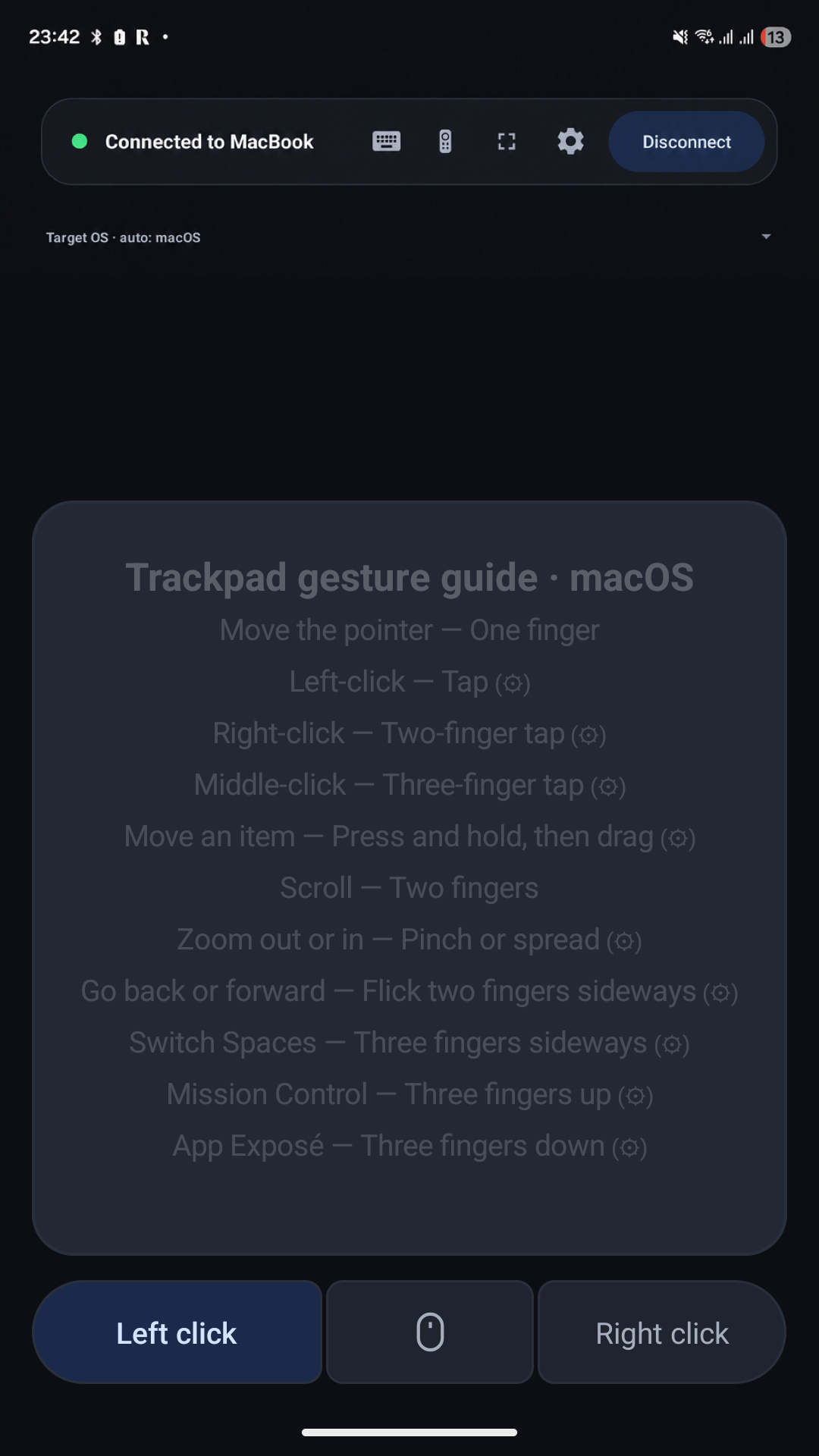
- Trackpad: Move the pointer, click, drag, use inertial scrolling, and reach multitouch gestures from one screen.
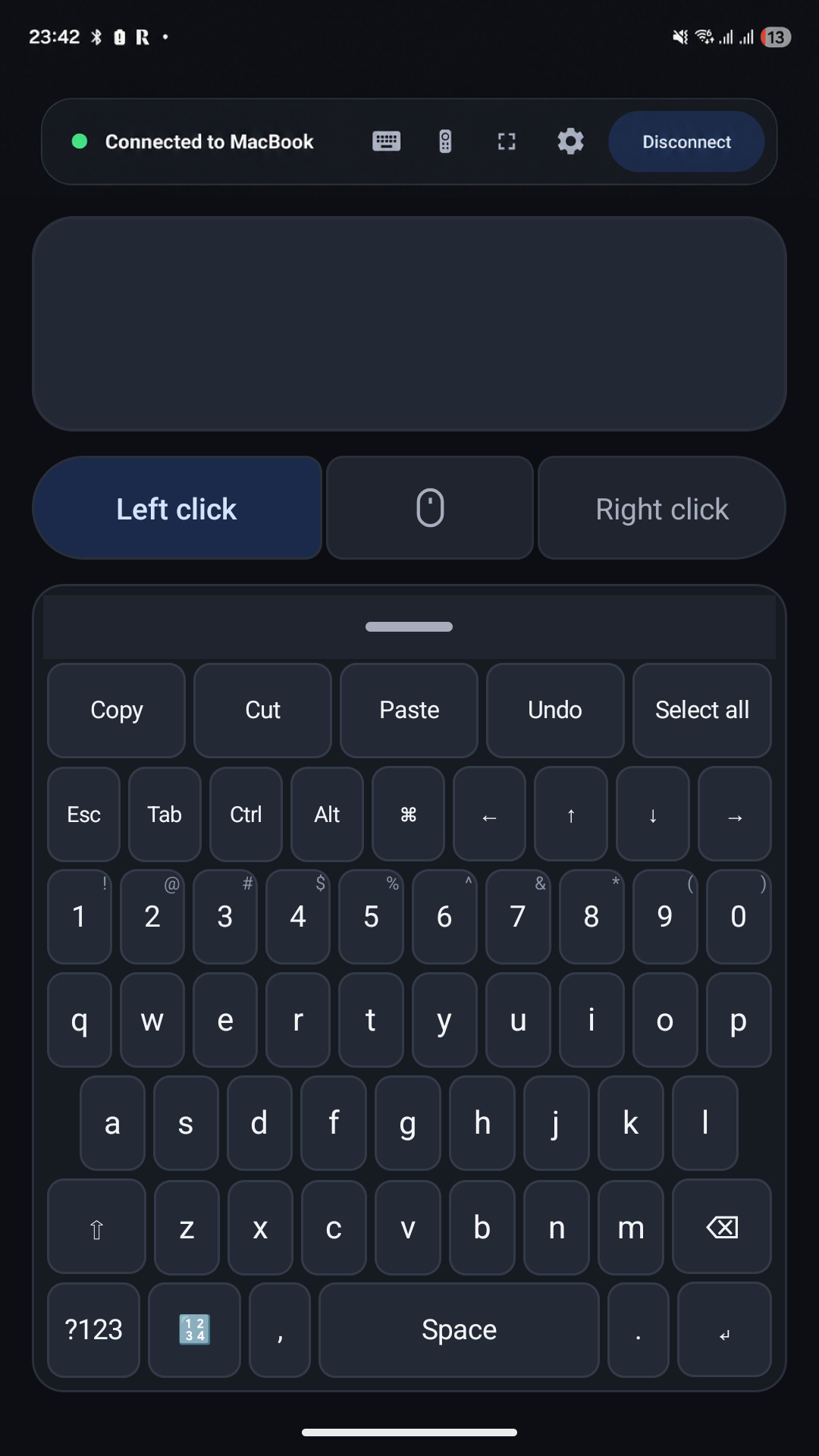
- Keyboard: Type text and use modifier, arrow, and media keys when an on-screen host keyboard is inconvenient.
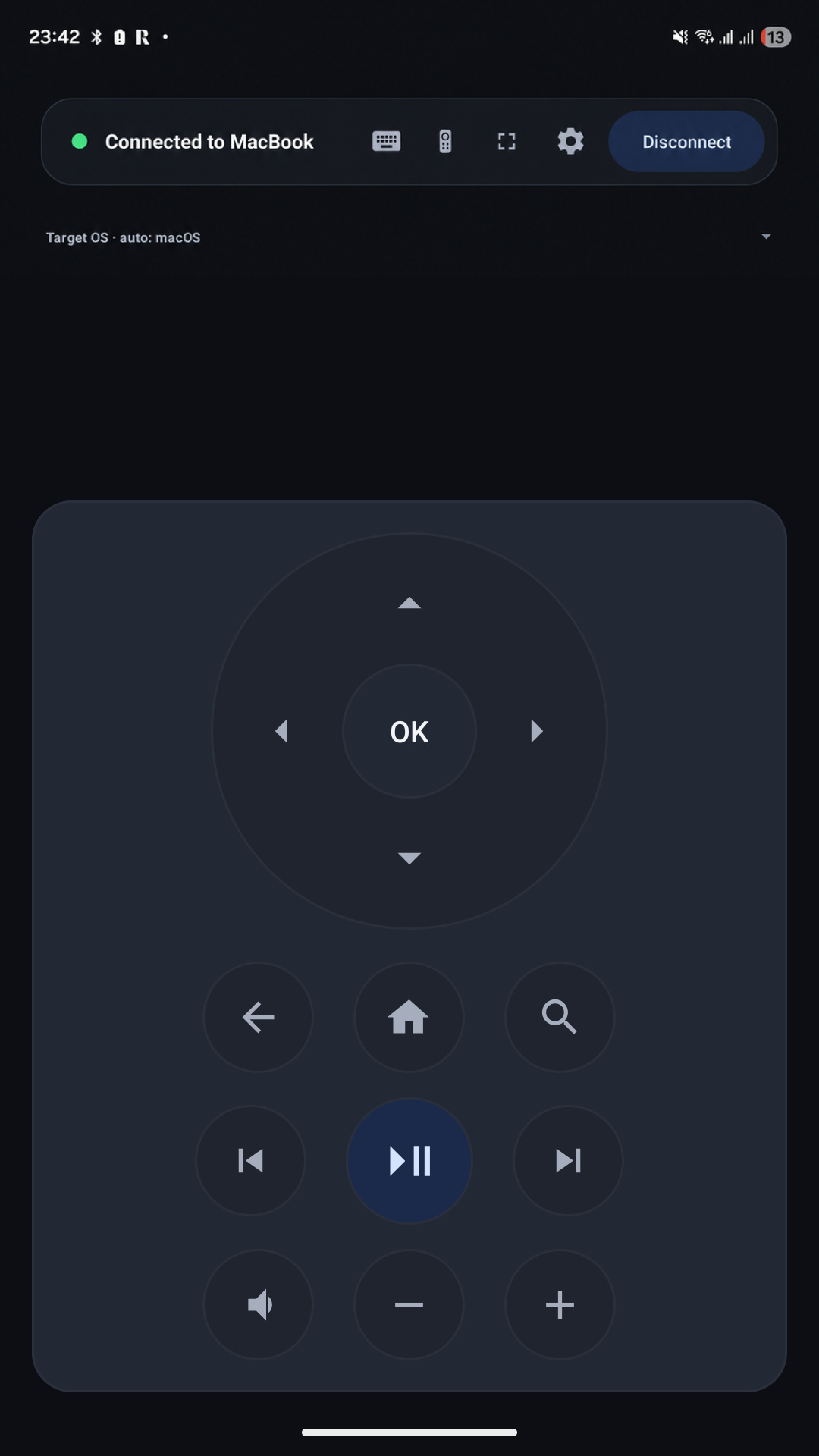
- Remote: Navigate supported devices with directional, playback, track, and volume controls.
- Direct connection: Send input through Bluetooth HID without installing software on the host.
That combination matters because the problem changes from moment to moment. One minute you need precise pointer movement; the next, you only need to enter a search term or pause a video. Omny Pad keeps those controls together and makes switching between them immediate.
The moments when it earns its place
The screen is across the room
A TV, media computer, Android TV box, or other compatible host is often easy to see and awkward to control. Remote mode puts the common navigation and playback controls in your hand. When text entry appears, switch to the keyboard instead of moving back to the device.
You are presenting without a clicker
If the presentation app responds to standard keyboard input, Omny Pad can provide the arrow and modifier keys you need from a paired Android device. It is a practical fallback when a dedicated presenter is missing, packed away, or out of power.
A mouse or keyboard suddenly becomes unavailable
Dead batteries, a forgotten dongle, or a workspace with no spare input device can stop a simple task. A phone running Omny Pad can restore basic pointer and keyboard control on a compatible host long enough to finish the job.
The setup is intentionally compact
Travel desks, mini PCs, TV boxes, and a spare phone beside a desktop-style setup do not always justify another mouse and keyboard. Omny Pad gives that phone a second job while keeping the kit light.
You need to type more than a remote can handle
Searching a streaming service, entering a URL, or signing into a device is painful with directional controls alone. Keyboard mode is useful precisely at that handoff: navigate with the remote, then type when the interface asks for text.
Useful because it is already with you
Omny Pad is not trying to argue that a phone should replace a full-size mouse and keyboard for an entire workday. Dedicated hardware still wins when comfort, precision, and long sessions matter most.
Its advantage is availability. The phone is charged, familiar, and usually close by. Turning it into a flexible input device removes the need to buy, carry, or locate another controller for short tasks and unexpected gaps.
The best backup input device is the one already in your pocket.
That makes Omny Pad especially valuable as part of a lightweight travel setup, a living-room media station, a presentation kit, or simply the contingency plan you do not have to remember to pack.
Pair once, then move
Getting started follows the same pattern as pairing a Bluetooth keyboard or mouse:
- Open Omny Pad and tap the connection control.
- Select the Android device from the host's Bluetooth settings.
- Approve the pairing code on both screens when prompted.
Available controls can vary by host, operating system, and app. For device-specific notes, gestures, and troubleshooting, use the Omny Pad pairing guide.
Put a spare input device in your pocket.
Download Omny Pad to turn a compatible Android phone or tablet into a wireless trackpad, keyboard, and remote.
 Google Play